Your Cart
Loading

Layout Guide

This section will help you understand the props that are part of our sequence, how our sequence groups are set up, and provide instructions on how to import our sequences into your show. This section provides the Christmas Layout props and model groups first, with the Halloween layout shown second. While the two layouts use slightly different props, most of the strings and the general model grouping is the same.


These sections may get a little technical, but will serve as a resource as you incorporate our sequences into your shows.

Christmas Props

Our basic layout is shown in the image below. We have added callouts that correspond to the prop list that is provided below. These props are readily available in xLights, and we tried to provide a variety from several different vendors. No props on your display? That's ok! Our sequences will make your house awesome on whatever design you are using.

xLights Christmas layout and models

Christmas Model Groups

Our sequences utilize the model groups to strategically apply consistent color behaviors across the display. You will find many advantages of creating model groups, regardless if using our sequences or building your own, as they allow greater versatility in what you can display. Don’t worry, model groups are very easy to create in xLights! Under the ‘Layout’ tab, you will see a Model/Group list (which you likely created when starting off your display). Right click in that list and select ‘Add Empty Group’. It’s that easy.


The list below identifies our key model groups. You do not need to name them the same as ours (importing will take care of this), but you will want to plan on a similar concept for each in order to make the sequence show similar to the video.


Key Model Groups

These are the foundational model groups that drive the show. You will need many of these for most shows, if not all. Fortunately, most are easy and straightforward, and likely are ones you will be using already.

  • Everything – All Lights Except Floods – For lighting up all display lights, except for floodlights.
  • Everything – All House (no floods) – For lighting up all lights on the house, including props, but does not turn on floodlights
  • Floods – All Ground – For lighting up all floodlights.
  • House – Outlines (All) – For all straight-line pixel runs, primarily along house edges.
  • House – Icicles (All) – For all icicle light runs.
  • House – Horizontals (All) – For all straight-line pixel runs that are approximately parallel to the ground (i.e. left-right runs)
  • House – Verticals (All) – For all straight-line pixel runs that are approximately perpendicular to the ground (i.e. up-down runs)


Simple Prop Groups

In order to have consistency among props, we utilize model groups for the props that are simple in design (i.e. no submodels). These should be very easy to create among the props in your display.

  • Props – Arches (All) – For all single-strand arches
  • Props – Candy Canes (All) – For all candy canes
  • Props – Mini Tree Stars (All) – For all mini tree stars
  • Props – Mini Trees (All) – For all mini trees
  • Props – Spiral Trees (All) – For all spiral trees


Complex Prop Groups

Complex prop groups include those with submodels, either ones that come default when loaded into xLights or those you will have to create. We are providing this list as a reference to help you imagine what types of complex props you might include in your design. Please note that these props utilize submodels and submodel groups, so you will need to create similar submodel groups if you want these props to perform exactly as shown in our videos. Fortunately, most props are fairly easy and straightforward to create model groups, and you can review our layout when purchasing one of our sequences to see which submodels are contained in which group.

  • GE MOAW Group – For all GE MOAW props. Separate subgroup models are included xLights for this prop, so creation of subgroups is not necessary if used on your display.
  • GE RosaWreath Group – For all GE RosaWreath props. Separate subgroup models are included xLights for this prop, so creation of subgroups is not necessary if used on your display.
  • Props – EFL Fans (All) – For all EFL Fan props. Note that individual props come standard with four (4) submodels (arch, concentric arch, flake, spinner); as such, we utilize subgroups that are tailored to each submodel and title them as Props – EFL Fans Sub – Arch, Props – EFL Fans Sub – Concentric Arch, Props – EFL Fans Sub – Flake, and Props – EFL Fans Sub – Spinner. Please see our sequence file to understand the combinations of submodels that create these submodels.
  • Props – PPD Wreath (All) – For all PPD Wreath props. Note that these individual props come standard with various submodels in xLights, of which we utilize eleven (11) in our sequences. Please see our sequence file to understand the combinations of submodels that create these submodels.
  • Props – Showstopper Snowflake (All) – For all Showstopper Snowflake props. Note that these individual props come standard with various submodels in xLights, of which we utilize nine (9) in our sequences. Please see our sequence file to understand the combinations of submodels that create these submodels.
  • Props – Snowflakes (All) – For all snowflake props. Note that the Gilbert Engineering props used in our display all come standard with various submodels that generally include an arm, outline, or spoke. We have tailored them to create subgroups Props – Snowflakes Sub – Arm, Props – Snowflakes Sub – Outline, and Props – Snowflakes Sub – Spoke. Please see our sequence file to understand the combinations of submodels that create these submodels.
  • Props – Snowflakes (All) – For all spinner props. Note that these individual props come standard with various submodels in xLights, of which we utilize six (6) in our sequences. Please see our sequence file to understand the combinations of submodels that create these submodels.


Leading Props

In order to energize our sequences, we use choreographed props that are triggered on certain notes, such as drum solos, guitar riffs, and other musical events. You do not need these, but they are really cool and add greater dimension to your show. At this time, we utilize a set of four (4) candy canes to create this choreography. As such, certain sequences will show individual candy canes as having effects during import. If you plan to do the same on your show, you will want to make sure these import to the props you plan to utilize for choreography.

  • Candy Cane 1
  • Candy Cane 2
  • Candy Cane 3
  • Candy Cane 4


Lesser Used Groups

These model groups were built into our original xLights layout, but somehow they never found much use. We may use them someday, and they should not be difficult to create because they overlap with other groups that we frequently utilize. We have included them for your reference.

  • Everything – All Lights – For all lights in the display (i.e. “whole house”)
  • Everything – All Lights Except Megatree – For all lights except those on the megatree
  • Everything – All Yard – For all lights in the yard, including props.
  • Props – All House – For all props attached to the house
  • Props – All Yard – For all props in the yard
  • Props – Wreaths (All) – For all wreaths, including the GE RosaWreath and the Boscoyo PPD Geo Wreath


If you’ve made it this far, you should have a good idea of what model groups to plan for. If you don’t know what model groups to plan for, you will likely figure it out. If you don’t think you can figure it out, then we’re happy to set up your show to import our sequences.

Halloween Props

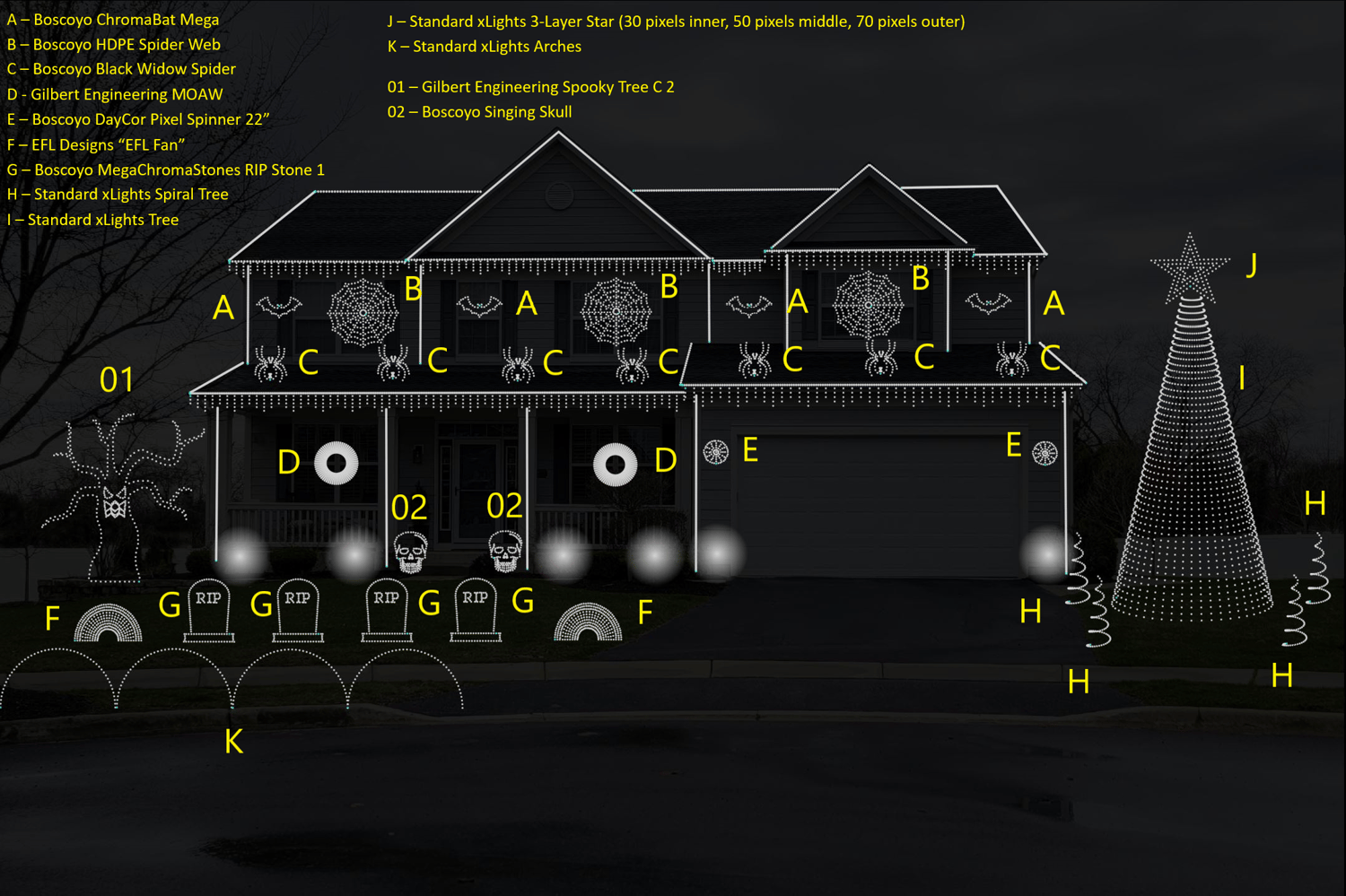
Our basic layout is shown in the image below. It is very similar to the Christmas layout, but includes props that are more relevant to Halloween. Callouts correspond to the prop list that is provided below. These props are readily available in xLights.

Halloween Model Groups

The list below identifies our key model groups for the Halloween layout. You do not need to name them the same as ours (importing will take care of this), but you will want to plan on a similar concept for each in order to make the sequence show similar to the video.


Key Model Groups

These are the foundational model groups that drive the show. Fortunately, the Halloween layout is a perfect match to the Christmas layout.

  • Everything – All Lights Except Floods – For lighting up all display lights, except for floodlights.
  • Everything – All House (no floods) – For lighting up all lights on the house, including props, but does not turn on floodlights
  • Floods – All Ground – For lighting up all floodlights.
  • House – Outlines (All) – For all straight-line pixel runs, primarily along house edges.
  • House – Icicles (All) – For all icicle light runs.
  • House – Horizontals (All) – For all straight-line pixel runs that are approximately parallel to the ground (i.e. left-right runs)
  • House – Verticals (All) – For all straight-line pixel runs that are approximately perpendicular to the ground (i.e. up-down runs)
  • Props – All House – For all props attached to the house
  • Props – All Yard – For all props in the yard


Simple Prop Groups

Our model groups for props are also similar to the Christmas layout, but include additional elements that are unique to the Halloween layout.

  • Props – Arches (All) – For all single-strand arches
  • Props – Bats (All) – For all bats.
  • Props – Spiral Trees (All) – For all spiral trees


Complex Prop Groups

Complex prop groups include those with submodels, either ones that come default when loaded into xLights or those you will have to create. We are providing this list as a reference to help you imagine what types of complex props you might include in your design. Similar to the Christmas layout, these props utilize submodels and submodel groups, so you will need to create similar submodel groups if you want these props to perform exactly as shown in our videos.

  • GE MOAW Group – For all GE MOAW props. Separate subgroup models are included xLights for this prop, so creation of subgroups is not necessary if used on your display.
  • Props – EFL Fans (All) – For all EFL Fan props. Note that individual props come standard with four (4) submodels (arch, concentric arch, flake, spinner); as such, we utilize subgroups that are tailored to each submodel and title them as Props – EFL Fans Sub – Arch, Props – EFL Fans Sub – Concentric Arch, Props – EFL Fans Sub – Flake, and Props – EFL Fans Sub – Spinner. Please see our sequence file to understand the combinations of submodels that create these submodels.
  • Props – Spiders (All) – For all Boscoyo Black Widow Spiders. We created unique submodel groups for the submodels that came in xLights for these props, which includes Props – Spiders Sub – Body, Props – Spiders Sub – Eyes, Props – Spiders Sub – HourGlass, Props – Spiders Sub – Leg (ranging from 1 to 8), and Props – Spiders Sub – Mouth. Please see our sequence file to understand the combinations of submodels that create these submodels.
  • Props – Spiderwebs (All) – For all Boscoyo HDPE Spider Webs. We created unique submodel groups for the submodels that came in xLights for these props, which includes Props – Spiderwebs Sub – Spinner (1 – 12 and All). Please see our sequence file to understand the combinations of submodels that create these submodels.
  • Props – Spinners (All) – For all spinner props. Note that these individual props come standard with various submodels in xLights, of which we utilize six (6) in our sequences. Please see our sequence file to understand the combinations of submodels that create these submodels.
  • Props – Tombstones (All) – For all Boscoyo MegaChromaStones RIP Stone 1. We created unique submodel groups for the submodels that came in xLights for these props, which includes Props – Tombstones Sub – RIP, Props – Tombstones Sub – Outline, Props – Tombstones Sub – R, Props – Tombstones Sub – I, and Props – Tombstones Sub – P. Please see our sequence file to understand the combinations of submodels that create these submodels.


Leading Props

In order to energize our sequences, we use choreographed props that are triggered on certain notes, such as drum solos, guitar riffs, and other musical events. You do not need these, but they are really cool and add greater dimension to your show. At this time, we utilize a set of four (4) tombstones to create this choreography. As such, certain sequences will show individual tombstones as having sequences during import. If you plan to do the same on your show, you will want to make sure these import to the props you plan to utilize for choreography.

  • Tombstone 1
  • Tombstone 2
  • Tombstone 3
  • Tombstone 4


Lesser Used Groups

These model groups were built into our original xLights layout, but somehow they never found much use. We may use them someday, and they should not be difficult to create because they overlap with other groups that we frequently utilize. We have included them for your reference.

  • Everything – All Lights – For all lights in the display (i.e. “whole house”)
  • Everything – All Lights Except Megatree – For all lights except those on the megatree
  • Everything – All Yard – For all lights in the yard, including props.